
PinkWallet Website Logo
Join early access
Agent framework · OpenAIAgent keyAbout 3 minVerified 2026-10-01

Connect OpenAI Agents SDK to Pink Agentic AI Payments

Attach Pink with MCPServerStreamableHttp and the agent gets the seven payment tools. Works with Python agents built with the OpenAI Agents SDK. Plans: Any OpenAI API account.

What you get

OpenAI Agents SDK asks Pink before it pays

Once connected, OpenAI Agents SDK can see its budget, the payees it may pay and the rules that apply, run a dry run, request a payment and file the receipt. The rules you set in Pink decide each request: allowed on the spot, sent to a person on the phone, or blocked. OpenAI Agents SDK never holds a card number or a bank login.

Step by step

  1. 1

    Create a free sandbox workspace

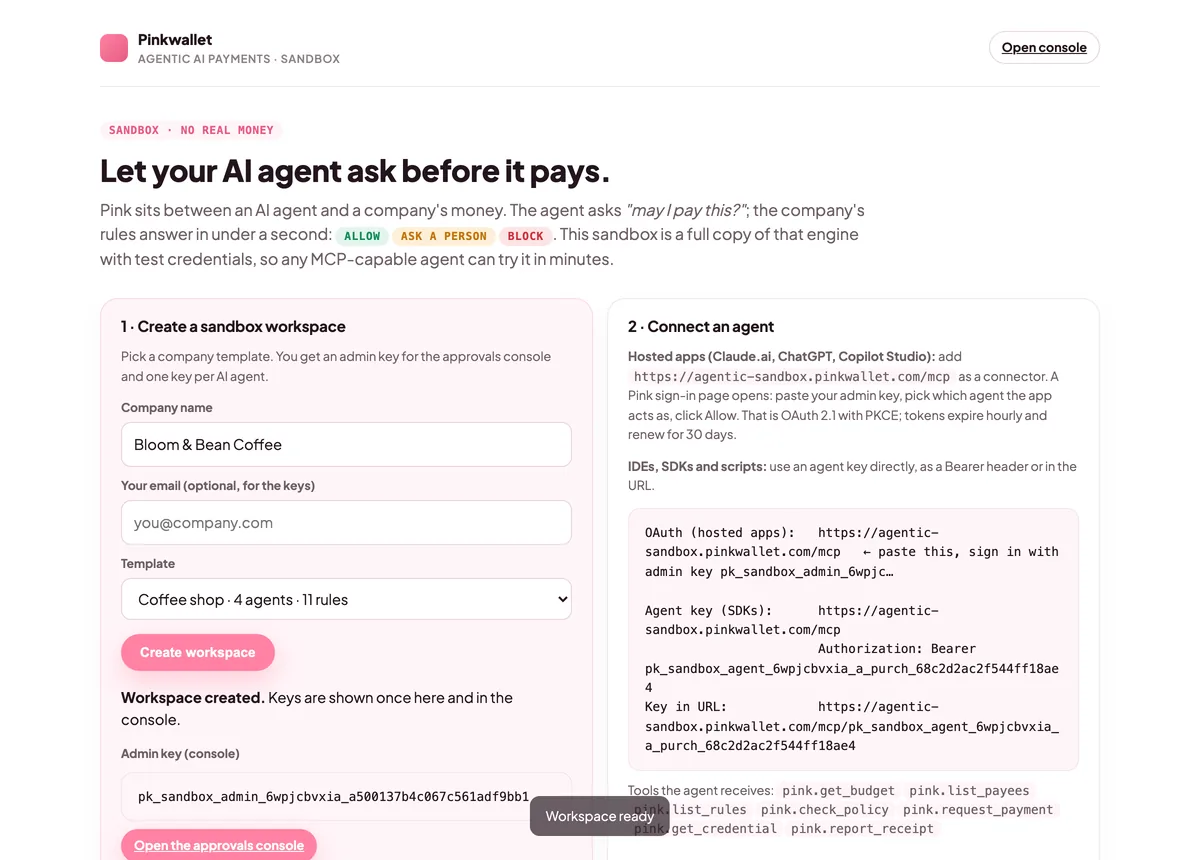
    Open agentic-sandbox.pinkwallet.com, type a company name, pick a template (coffee shop, startup or e-commerce) and click Create workspace. You get an admin key for the console and one key per AI agent. Keep the admin key: the sign-in page asks for it.
    After creating a workspace: the admin key and one key per agent are shown once
    After creating a workspace: the admin key and one key per agent are shown once
  2. 2

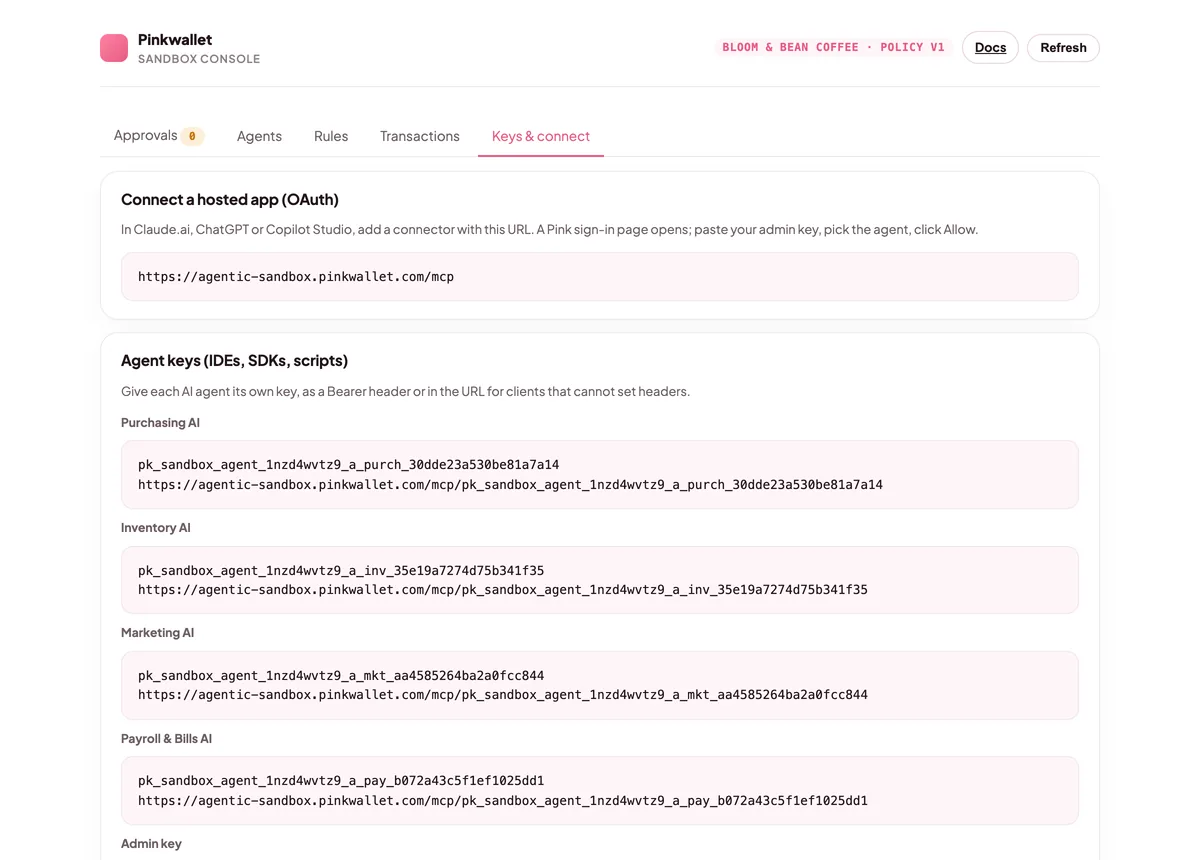
    Copy an agent key

    From the workspace page or the console.
    The console's Keys & connect tab with the OAuth URL and the agent keys
    The console's Keys & connect tab with the OAuth URL and the agent keys
  3. 3

    Attach the server

    Create an MCPServerStreamableHttp with url https://agentic-sandbox.pinkwallet.com/mcp and the key in headers, and pass it in mcp_servers when you build the Agent.
  4. 4

    Run the agent

    Give it the purchase as the task. The run log shows each Pink tool call and its result.
  5. 5

    Watch the approval land in the console

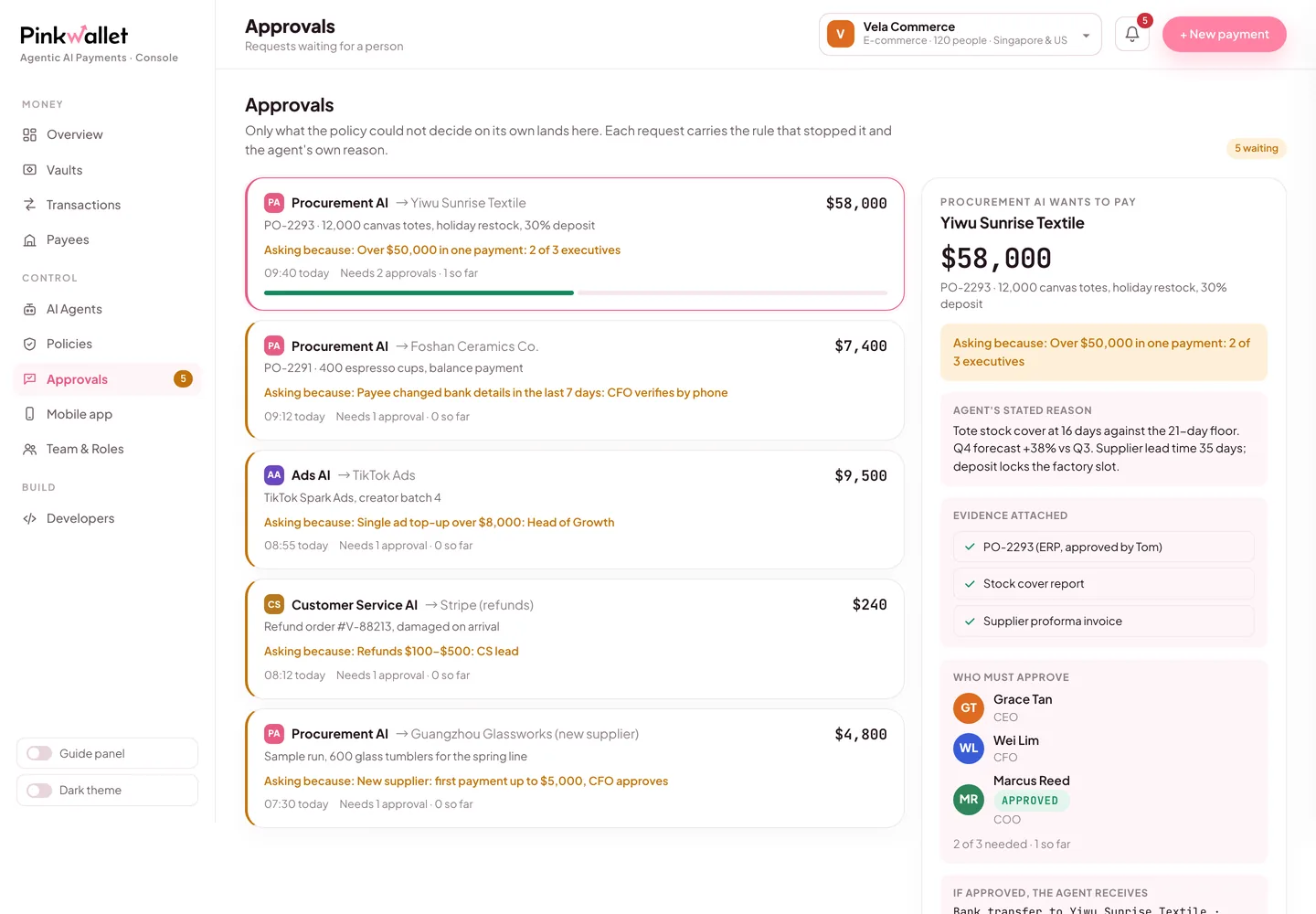
    Open the sandbox console (link on the workspace page). Requests that cleared, asked a person or were blocked are all listed with the rule that decided them. Approve the pending one and the agent continues.
    Approvals in the console: the rule that stopped the request, the agent's reason, the evidence
    Approvals in the console: the rule that stopped the request, the agent's reason, the evidence

The configuration, ready to paste

OpenAI Agents SDK · python
from agents import Agent, Runner
from agents.mcp import MCPServerStreamableHttp

async def main():
    async with MCPServerStreamableHttp(name="pink", params={"url": "https://agentic-sandbox.pinkwallet.com/mcp",
            "headers": {"Authorization": "Bearer <agent_key>"}, "timeout": 30}, cache_tools_list=True) as pink:
        agent = Agent(name="Purchasing AI", instructions="You buy supplies for a coffee shop. Check the policy before requesting a payment and file the receipt after paying.", mcp_servers=[pink])
        result = await Runner.run(agent, "We are low on espresso beans. Reorder 20 kg from Counter Culture Coffee for $420.")
        print(result.final_output)

Replace <agent_key> with the key of the agent this agent framework should act as. Each agent has its own key, budget and rules.

Try it: say this to OpenAI Agents SDK

Say this

“Check my budget with Pink, then order 20 kg of espresso beans from Counter Culture Coffee for $420. After that, order $890 of weekly supplies from Sysco.”

What you will see

The first order is allowed on the spot and the agent receives a single-use test credential. The second stops at the store manager's rule ($500–$2,000): it shows up under Approvals in the console, and the agent waits for a person. Approve it there and the agent picks up the credential.

Why those two rules exist →

Pink's side, in three screens

The sandbox workspace page with the admin key and one key per agent
Keys are shown once when the workspace is created.
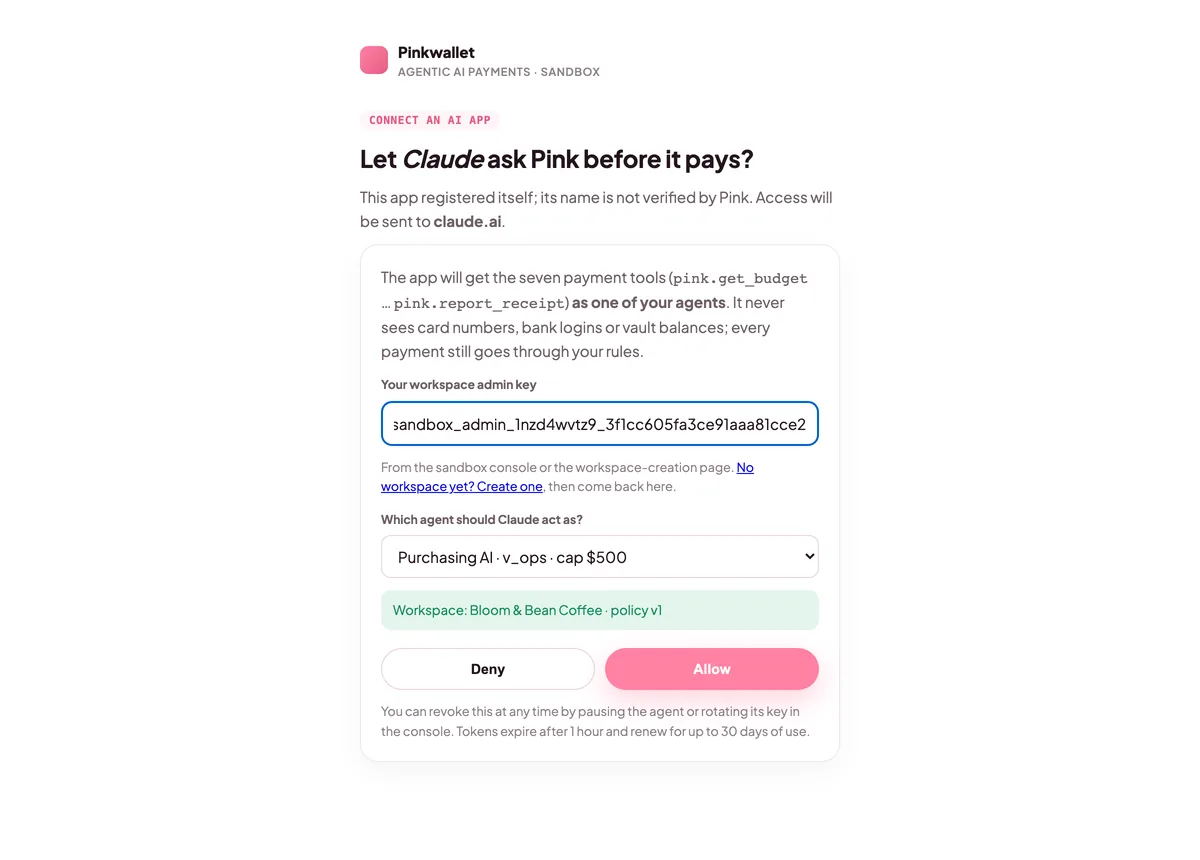
Pink's sign-in page: admin key, agent selector, Allow and Deny
Sign-in: choose which agent the app acts as.
The console's Approvals tab with a pending request
Requests that need a person wait here and on the phone.

FAQ

Which transport?

Streamable HTTP, which is what MCPServerStreamableHttp speaks. Pink does not need SSE.

Official documentation

Menu names and settings paths follow each vendor's documentation at the verified date. If a vendor moves a menu, the linked page is the source of truth; the Pink side does not change.

Other clients